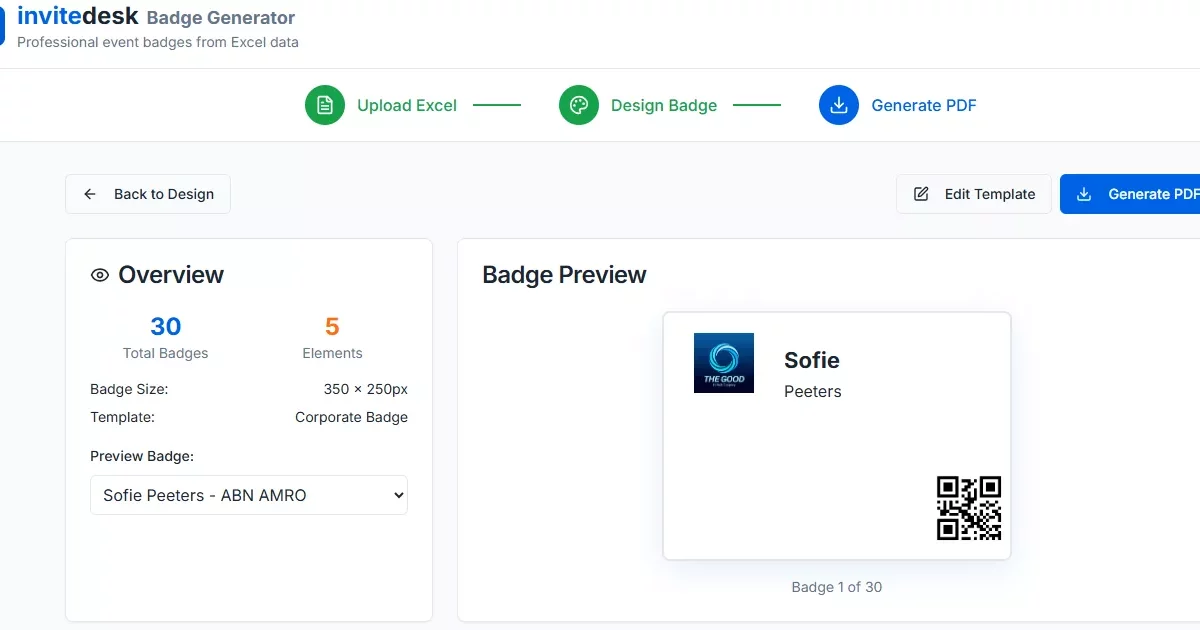
Create Professional Name Badges from Excel (PDF Ready)
Upload your attendee list, design your badge, and export pixel-perfect PDFs in minutes. Works with .xlsx and .xls. No design experience required.
firstname, name, company, code.From spreadsheet to print-ready badges — fast
- Map once, generate many: Drop in your Excel, map fields, and export a multi-page PDF for on-site badging in a few clicks.
- Consistent branding at scale: One layout (logo, colors, fonts, QR/code) applies across hundreds or thousands of names.
- Faster check-in: Use the
codecolumn to place QR/barcodes that scan back to the right attendee. - GDPR-friendly: You control your upload and can remove files after export.
Design once, scale everywhere
- Badge size & orientation (portrait/landscape)
- Fonts, sizes, casing for name/company lines
- Logos & brand colors (#2581C4)
- QR/barcode sourced from
code - Extra fields (e.g., “Tier A guest”, “Workshop”, “All-access”)
Three simple steps
1) Upload Excel
- Drag & drop your .xlsx/.xls file.
- Required columns:
firstname,name,company,code. - Tip: Any extra columns become variables you can place on the badge (e.g.,
title,country,table).
2) Design your badge
- Place fields (name, company, code/QR), add logos & brand colors, choose font sizes and alignment.
- Optional front/back layouts for lanyard flips.
3) Generate PDF
- Create a multi-page, print-ready PDF — ideal for A4/Letter sheets or pre-cut badge stock.
Ideal for
- Corporate events & conferences (hosted buyers, VIP tiers)
- Roadshows & seminars (repeatable branding week-to-week)
- Trade shows requiring QR-based fast lane check-in
Data requirements
- First row = column headers
- Required:
firstname,name,company,code - Optional: any extra columns you want to print (e.g.,
job_title) - File types: .xlsx, .xls
Pro tips
- Use Title Case for names to avoid manual edits.
- Keep code values unique to prevent duplicate scans.
- Test-print one sheet to confirm margins with your printer/paper stock.
Design & Generate
FAQs
Can I add QR codes to badges?
Yes. The generator pulls from the code column in your Excel and renders a scannable code on each badge.
Does it support back-to-back (double-sided) badges?
Yes. Create front and back designs, then export as a single, multi-page PDF.
What paper sizes does it support?
Set a custom badge size and export to a multi-page PDF; print on A4/Letter or pre-cut stock. We recommend a quick test print to confirm margins.
What happens to my data?
Your badges are generated directly from your uploaded file. You control the file and can remove it after generating your PDF. InviteDesk follows ISO27001 and GDPR practices across the platform; please follow your internal retention policy.
Can I map custom fields?
Yes—any additional columns become variables you can place on the badge (e.g., title, country, table).
When you’re ready to go beyond badges, InviteDesk helps you buy back time with automation across invitations, quotas, VIP tracking, and real-time ROI.